-
Price: $0.08658 -0.7187%
-
Market Cap: 13.51B 0.4874%
-
Volume (24h): 947.43M 0%
-
Dominance: 0.4874% 0.4874%
-
Price: $0.08658 -0.7187%

Scan code transfer tutorial
Release: 2026/07/31 02:36 Reading: 0
Original author:KeyPal Wallet
Original source:https://www.youtube.com/embed/aEu_bnbw37o
Preparations before scanning the QR code to transfer: KeyPal 2 has completed initialization KeyPal 2 has been successfully associated with TokenPocket App The corresponding KeyPal 2 wallet address has been added to TokenPocket App The KeyPal2 device has been turned on and the PIN code can be entered normally The current wallet has sufficient balance (including the main currency handling fee, such as BNB/ETH/TRX/SOL, etc.) Note: The connection method between KeyPal 2 and TokenPocket is "scan code connection". (If the current connection is Bluetooth, you can also switch to scan code connection in TokenPocket App before transferring money.) Tip: During the scan code transfer process, please ensure that the brightness of the mobile phone screen is moderate and the QR code is complete and clear to improve the success rate of device recognition. Step 1: Confirm that the connection method is scan code connection (if it is currently a Bluetooth connection, you can switch it by following the steps below) Select the corresponding KeyPal 2 hardware wallet address in TokenPocket - after entering the wallet main interface, click "..." in the upper right corner - enter the wallet details - click the "hardware device icon" in the upper right corner - select "Connection method" - switch to "scan code connection". After completion, return to the wallet page and initiate a transfer by scanning the QR code. Step 2: Initiate a transfer in TokenPocket App (take BNB as an example) Step 1: Click "Transfer" In TokenPocket App, enter the corresponding KeyPal2 wallet and click "Transfer". Step 2: Select the transfer currency. Select the currency to be transferred, for example: BNB. Step 3: Fill in the receiving address. The receiving address can be obtained in the following ways: a. Paste the address; b. Scan the QR code to obtain the address. Step 4: Enter the transfer amount. Enter the amount to be transferred this time. Step 5: Confirm and call the hardware wallet Click "OK" and then select "Confirm via Hardware Wallet". At this time, the App will display the QR code to be signed and wait for KeyPal 2 to scan the code. Step 3: Use KeyPal 2 to scan and sign. Step 1: Scan the device to identify the transaction QR code. On the main interface of the KeyPal2 hardware wallet, click the device button "[-]" to identify the QR code displayed on the App. Step 2: Enter the device PIN code. Enter the device PIN code according to the prompts. Step 3: Confirm the transaction details. Check the transaction information on the device, including but not limited to: currency, amount, receiving address, network handling fee (if displayed). After confirming that it is correct, sign on the device. Step 4: The signature is successful and the device displays the signature QR code. After the signature is completed, the KeyPal2 device will display the signature result QR code. Step 4: Scan the signature result in the TokenPocket App and send it Step 1: Use the App to scan the device QR code In the TokenPocket App, click "[-] Scan Signature Result" and scan the QR code displayed on the KeyPal2 device. Step 2: After confirming that the sending scan is completed, click "Confirm to Send". At this point the transaction has been signed and successfully issued (broadcast to the chain). Complete the transfer After the transfer is completed, just click Return on the KeyPal2 device. At this point, the scan code transfer process has been completed. Warm reminder: Before scanning the QR code to transfer money, please confirm that the current connection method is the scan QR code connection. Before each signature, please be sure to check the transaction details on the KeyPal2 device, and the content displayed on the device shall prevail. Please confirm that the transfer network is consistent with the network to which the receiving address belongs (such as BNB/BSC, ETH, TRON, SOL, etc.). When transferring, please reserve enough main currency to pay the on-chain handling fees. Do not disclose your mnemonic phrase, private key or PIN to anyone.
Recent news
MORE>>-
 TechAnalysis
2026-09-21 05:36
TechAnalysis
2026-09-21 05:36
-
 DADS DEFI SPACE
2026-09-21 05:36
DADS DEFI SPACE
2026-09-21 05:36
-
 Cybersecurity News
2026-09-21 05:36
Cybersecurity News
2026-09-21 05:36
-
 Dr Niki
2026-09-21 05:36
Dr Niki
2026-09-21 05:36
-
 Marinko
2026-09-21 05:23
Marinko
2026-09-21 05:23
-
 Tearrs
2026-09-21 05:21
Tearrs
2026-09-21 05:21
-
 by rekta
2026-09-21 05:19
by rekta
2026-09-21 05:19
-
 Kaiden
2026-09-21 05:19
Kaiden
2026-09-21 05:19
-
 CoinBaron
2026-09-21 04:57
CoinBaron
2026-09-21 04:57
Selected Topics
-
- Dogecoin whale activity
- Get the latest insights into Dogecoin whale activities with our comprehensive analysis. Discover trends, patterns, and the impact of these whales on the Dogecoin market. Stay informed with our expert analysis and stay ahead in your cryptocurrency journey.
-

- Dogecoin Mining
- Dogecoin mining is the process of adding new blocks of transactions to the Dogecoin blockchain. Miners are rewarded with new Dogecoin for their work. This topic provides articles related to Dogecoin mining, including how to mine Dogecoin, the best mining hardware and software, and the profitability of Dogecoin mining.
-
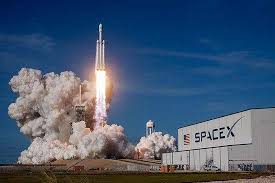
- Spacex Starship Launch
- This topic provides articles related to SpaceX Starship launches, including launch dates, mission details, and launch status. Stay up to date on the latest SpaceX Starship launches with this informative and comprehensive resource.
-
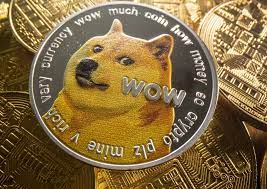
- King of Memes: Dogecoin
- This topic provides articles related to the most popular memes, including "The King of Memes: Dogecoin." Memecoin has become a dominant player in the crypto space. These digital assets are popular for a variety of reasons. They drive the most innovative aspects of blockchain.
Selected Articles
More>>- 1 Arctic Pablo Coin (APC): Uncovering Earth's Mysteries, One Presale at a Time
- 2 New Highs For Dogecoin, Pepe and Shiba Inu In 2025 But This Crypto May Steal The Show With 10,000% Gains
- 3 Meme Coin Doge Uprising (DUP) Could 100x After President Donald Trump Announces Crypto Strategic Reserve
- 4 Dogecoin (DOGE) Price Prediction: Could Meme Coin Hit $10 by the End of 2025?
- 5 Cardano's Charles Hoskinson Has Made Some Notable Remarks About Bitcoin and Dogecoin
- 6 Cloud Mining Craze: Bitcoin, Dogecoin, and the Quest for Passive Crypto Income
- 7 Grayscale, Dogecoin, and the ETF Debut: A New Era for Meme Coins?
- 8 Rexas Finance (RXS) Could Surge 10x by 2025, Outpacing Pepe (PEPE)
- 9 Bitcoin Trader Who Made $30 Million On DOGE Predicts 6,000% Surge For This $0.0000002 AI Token – Get 80% Bonus Tokens
- 10 Dogecoin (DOGE) Price Prediction: Meme Coin Could Rally To $0.27 As It Closes Above Pre-Halving Highs
Select Currency

US Dollar
USD

Chinese Yuan
CNY

Japanese Yen
JPY

South Korean Won
KRW

New Taiwan Dollar
TWD

Canadian Dollar
CAD

Euro
EUR

Pound Sterling
GBP

Danish Krone
DKK

Hong Kong Dollar
HKD

Australian Dollar
AUD

Brazilian Real
BRL

Swiss Franc
CHF

Chilean Peso
CLP

Czech Koruna KČ
CZK

Singapore Dollar
SGD

Indian Rupee
INR

Saudi Riyal
SAR

Vietnamese Dong
VND

Thai Baht
THB
Select Currency
-
US Dollar
USD-$

-
Chinese Yuan
CNY-¥
-
Japanese Yen
JPY-¥
-
South Korean Won
KRW -₩
-
New Taiwan Dollar
TWD-NT$
-
Canadian Dollar
CAD-$
-
Euro
EUR - €
-
Pound Sterling
GBP-£
-
Danish Krone
DKK-KR
-
Hong Kong Dollar
HKD- $
-
Australian Dollar
AUD-$
-
Brazilian Real
BRL -R$
-
Swiss Franc
CHF -FR
-
Chilean Peso
CLP-$
-
Czech Koruna KČ
CZK -KČ
-
Singapore Dollar
SGD-S$
-
Indian Rupee
INR -₹
-
Saudi Riyal
SAR -SAR
-
Vietnamese Dong
VND-₫
-
Thai Baht
THB -฿